I am not using a modern GPU its older and by today’s standard probably considered prehistoric. That being said I play a lot of modern games.
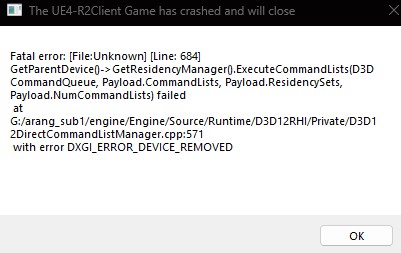
Raven 2 crashes, and it crashes a LOT! its no understatement or exaggeration. What is so funny to me, is that a game that gives you the option to auto grind and loot. It crashes almost instantaneously the moment you multitask on your computer.
I might be alone in this, but possibly maybe this could potentially help somebody else or at the very least shine some light.
Let’s break this down clearly and then I’ll give you concrete fixes that actually help on Windows 11.
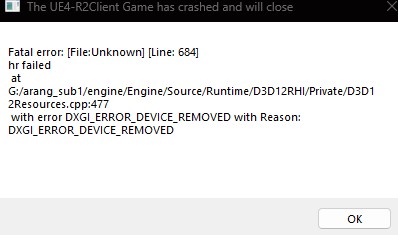
What the error really means
You’re getting:
DXGI_ERROR_DEVICE_REMOVED
D3D12RHI / D3D resources / CommandQueue failed
Translation in plain English:
➡️ Windows reset or lost communication with your GPU while the game was rendering
This happens when:
- The GPU driver crashes or times out
- DX12 is unstable with the game
- The game hits a shader / VRAM bug
- Power management or overlays interfere
- UE4 is poorly optimized (Netmarble specialty 😒)
This has nothing to do with your internet.
Why Raven 2 is especially prone to this
Raven 2:
- Uses UE4 with DX12
- Is mobile-first, then brute-forced onto PC
- Has aggressive shader compilation
- Streams assets constantly (VRAM spikes)
- Is known to crash on PC even with strong GPUs
So yes — this is 100% a video / driver / engine issue.
Fixes that actually work (do these in order)
1. Force DX11 (this is HUGE)
DX12 is the #1 cause of this error.
If Raven 2 allows launch options in Epic:
- Open Epic Games Launcher
- Go to Library
- Click the three dots on Raven 2
- Choose Manage
- Add Launch Options:
-d3d11
If there’s a config file (common UE4 path):
%LOCALAPPDATA%\Raven2\Saved\Config\WindowsClient\
Edit or create:
Engine.ini
Add:
[SystemSettings]
r.DefaultFeature.AntiAliasing=1
r.ShaderPipelineCache.Enabled=0
DX11 alone fixes crashes for a LOT of people.
2. Disable GPU timeout (TDR) in Windows
Windows 11 is very aggressive about resetting GPUs.
- Press Win + R
- Type
regedit - Go to:
HKEY_LOCAL_MACHINE\SYSTEM\CurrentControlSet\Control\GraphicsDrivers
- Create DWORD (32-bit):
TdrDelay = 10
TdrDdiDelay = 20
- Restart PC
This prevents Windows from killing the driver mid-frame.
3. Clean reinstall GPU drivers (no Express install)
This matters more than people think.
- Download DDU (Display Driver Uninstaller)
- Boot into Safe Mode
- Remove GPU drivers completely
- Reinstall latest WHQL, not beta
- During install:
- ❌ GeForce Experience overlay
- ❌ HD Audio
- ❌ Extra telemetry
If you’re on NVIDIA, use Studio Driver, not Game Ready.
4. Disable ALL overlays
Overlays break UE4 constantly.
Disable:
- Epic overlay
- Discord overlay
- Steam overlay
- NVIDIA overlay
- Xbox Game Bar
Xbox Game Bar alone causes tons of DXGI_ERROR_DEVICE_REMOVED crashes.
5. Force High Performance GPU
Especially important if you’re on a laptop.
Windows 11:
- Settings → System → Display → Graphics
- Add Raven2 executable
- Set to High Performance
Also:
- NVIDIA Control Panel → Power Management → Prefer Maximum Performance
6. Cap the FPS
Uncapped FPS = GPU spikes = driver reset.
If no in-game limiter:
- NVIDIA Control Panel → Max Frame Rate → 60
or - RTSS → Cap to 60 or 90
This alone can stop crashes completely.
7. Lower VRAM pressure
Even if you have lots of VRAM.
Set:
- Textures: Medium
- Shadows: Low
- Effects: Medium
- Turn off motion blur / film grain
UE4 DX12 hates VRAM spikes.
If you want to prove Netmarble is wrong
Check Windows Event Viewer:
- Windows Logs → System
- Look for:
Display driver nvlddmkm stopped respondingDXGI_ERROR_DEVICE_REMOVED
That’s driver-level GPU failure, not networking.
Bottom line
You’re right:
- ❌ Not internet
- ❌ Not your fault
- ✅ UE4 + DX12 + Netmarble PC port = unstable mess